
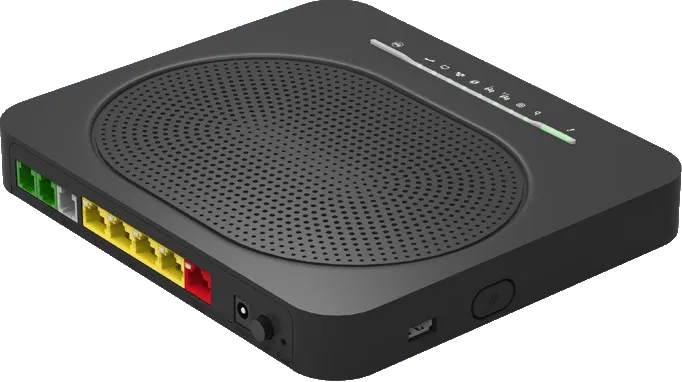
DGA0122 Remote Assist Feature
In some cases it may be required that Fusion Telecoms require remote access to the Technicolor’s web interface.
This needs to be enabled each time, using the following steps:
Log in to the router
Find the ‘Assistance’ box, and click the On/Off button to turn it on
Details of how to access the router will then be shown, including the username/password, IP address and port.
Never give out the router information to anyone you are unsure of!
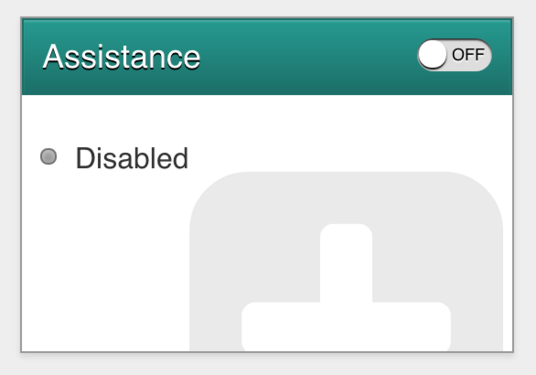
Assistance box on front page
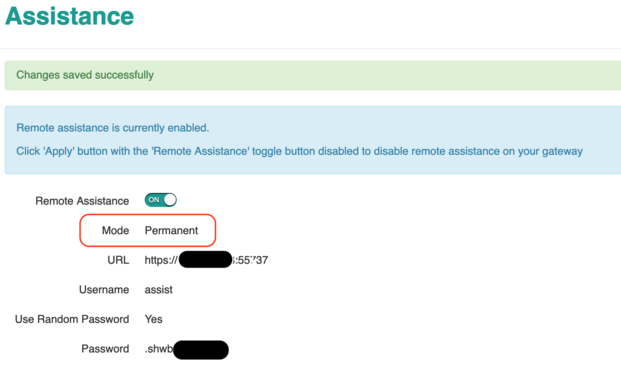
Assistance Enabled, with connection details
Permanent remote access
Some firmware versions have an option to set Remote access permanently:
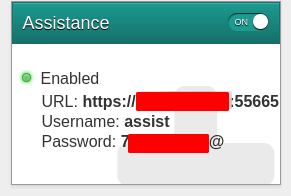
Use caution when setting this, as it will keep the port open permanently, but the password will be lost upon a reboot of the router.
We suggest customers leave remote assist off, and use our control page to enable/disable as and when needed for temporary access to the remote router.
Bugs with permanent access
If the router is rebooted, then access to the router will be lost as the password is not saved during a reboot. – you will need to access the router (from the LAN) and disable and re-enable the remote access. – this will generate a new password and port to use.
If the router is rebooted, then reconfiguring remote access will not be possible via the control pages
